Running the ReplValidator Utility
The ReplValidator utility contains a number of menus containing submenu options, as well as a toolbar containing several buttons, to access user functions for managing replication validation.
See Creating the ReplValidator Configuration File for more information about the format of the file.
To Run the ReplValidator
- Click File > Open Config…. (or Ctrl+O or click
 (Open Config) on the toolbar) to browse to the location of your ReplValidator configuration file. Click Open.
 - Click the check boxes to select the services you would like to run the ReplValidator against. Use the Arrow buttons to Select All (
 ) or Deselect All (
 ), to ease selection. Note that selecting several large services to validate at the same time can cause significant load on the system.
 - Click to select or clear Enable Log Viewer Refresh (or click
 (Enable Log Viewer) on the toolbar) to display or hide ReplValidator results in the lower pane.
 - To begin replication validation on the selected services click Start (
 ).
). - To cancel the validation, click Stop (
 ). During the validation process the progress of validation is displayed as a percentage in the Primary and the Repl columns. The percentage indicates how many records have been checked out of the total number of records for the service.
 - View summary and detail log files in the file location specified in the configuration file.
View Configuration Error Logs
After validation (or while running is paused) you can view any detected errors in the ReplValidator configuration for any pairs of replicated services that have been compared.
To View Configuration Error Logs
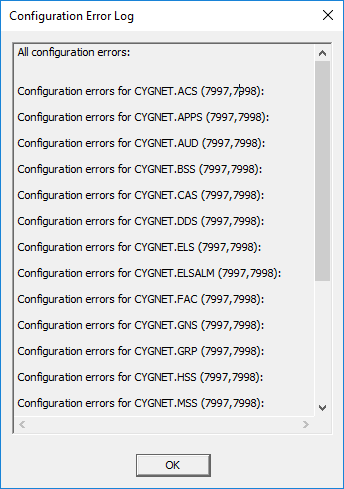
- Click View > Configuration Error Log…. (or select a service pair and right-click Configuration Error Log from the context menu) to access the Configuration Error Log dialog box to view configuration file errors for any or all service pairs.
- The errors are listed in the dialog box for informational purposes.
|
| Configuration Error Log |
View Service Properties
After validation (or while running is paused) you can view properties for a pair of replicated services that have been compared.
To View Service Properties
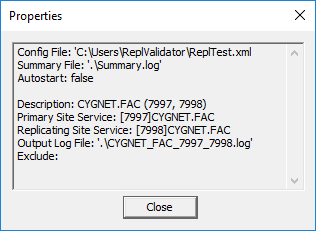
- Click View > Properties…. (or select a service pair and right-click Properties from the context menu) to access the Properties dialog box to view the ReplValidator configuration properties for a selected Site.Service pairs, including description and domain information.
- Or select the desired Site.Service from the list in the upper pane of the utility and click
 (Properties) on the toolbar.
 - Once selected and opened, applicable properties are listed for informational purposes.
|
| Facility Service Pair Properties |


